MQTT
Connect a standalone Meshtastic gateway to your MOVETAIN room through the MQTT broker. Configure the radio, test the broker connection, then verify the encrypted path in the portal.
How this line works
LoRa nodes ↔ MQTT gateway ↔ MOVETAIN MQTT broker and packet handler ↔ portal.
The gateway receives LoRa packets and publishes supported traffic to the broker. The server associates that connection with your room, processes the packets, and sends supported portal commands back through MQTT downlink. A configured standalone gateway does not need a phone connected continuously.
Use firmware that includes the Meshtastic MQTT client. Our dedicated Direct WSS build excludes it; entering a broker address cannot add MQTT to that build. Give the gateway Internet access and configure the correct LoRa region, preset, channels, and keys for your mesh.
Create your room
Sign in to the Movetain Portal. In the ROOMS panel, select + CREATE ROOM. If your account’s room limit has been reached, check the limit shown above your rooms.
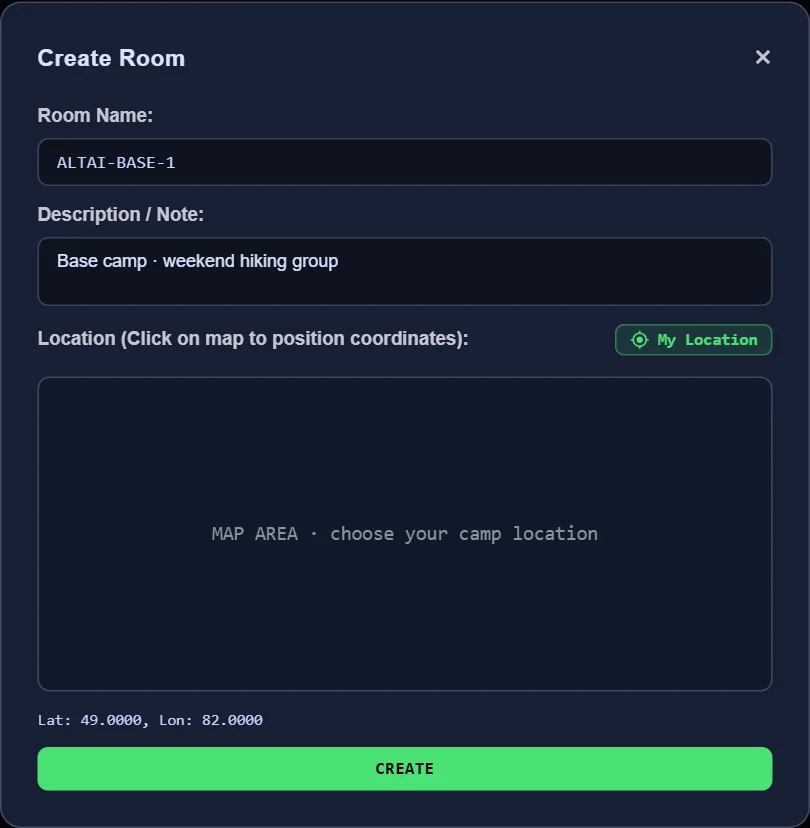
- Room Name
- A short name your group will recognize, for example ALTAI-BASE-1. The field accepts up to 28 characters; the portal converts the saved name to uppercase. This is a display name, not your Room ID.
- Description / Note
- A note about your group, route, or camp, up to 140 characters. For example: Base camp · weekend hiking group.
- Location
- Click the map to set the room’s coordinates, or use My Location and allow location access if you want to use your current position. Confirm the latitude and longitude shown below the map. This places the room on the map; it does not configure the gateway’s GPS or radio frequency.
- CREATE
- Creates the room and generates its Room ID and keys automatically. You do not enter or invent these credentials in the creation form.
Find the two values your gateway needs
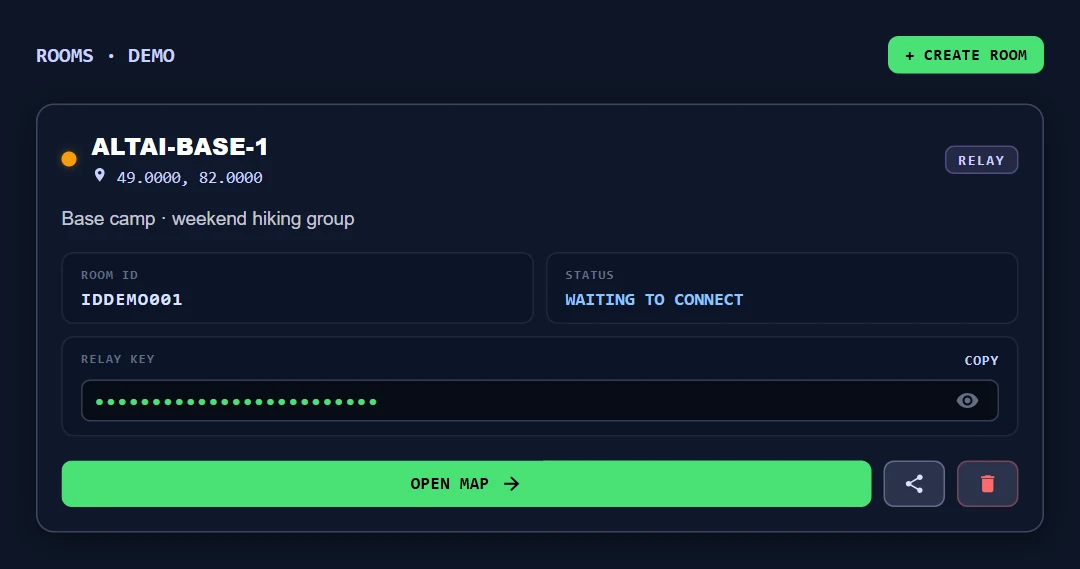
- ROOM ID → Username
- Copy the complete Room ID from your own room card. Do not use Room Name, your account email, or the example ID shown here.
- RELAY KEY → Password
- Use COPY next to RELAY KEY and paste that value into the MQTT Password field. The eye icon shows or hides the key on your screen. Keep the key private; do not substitute a coordinator or spectator invitation key.
- STATUS
- The room may initially wait for a gateway connection. After setup, check this status again.
- OPEN MAP
- Opens the room map. It does not by itself connect or configure the hardware.
Configure the MQTT broker
In the Meshtastic configuration app, open the connected device’s settings, then MQTT. The screenshot labels are translated into English. The table below explains each field and value. Menu wording can vary by app version.
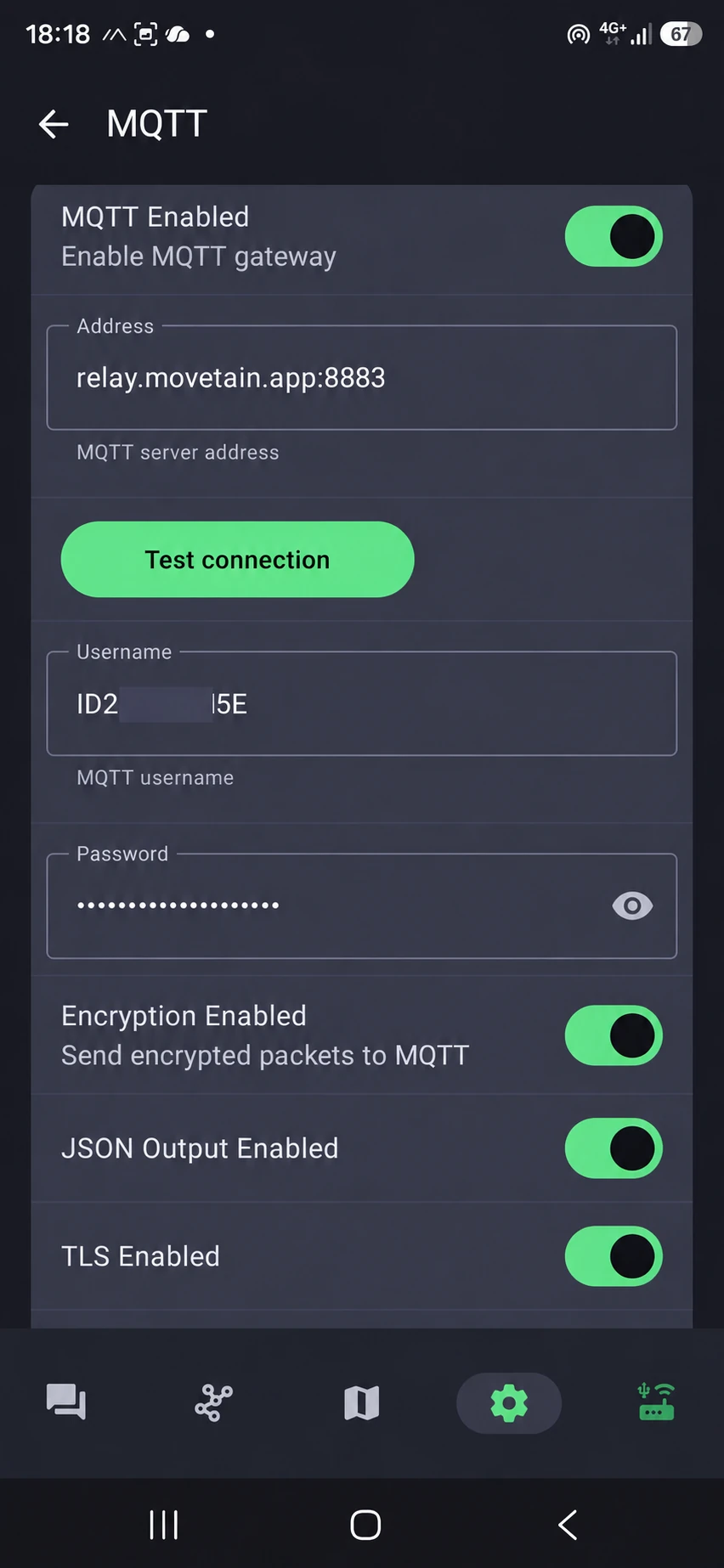
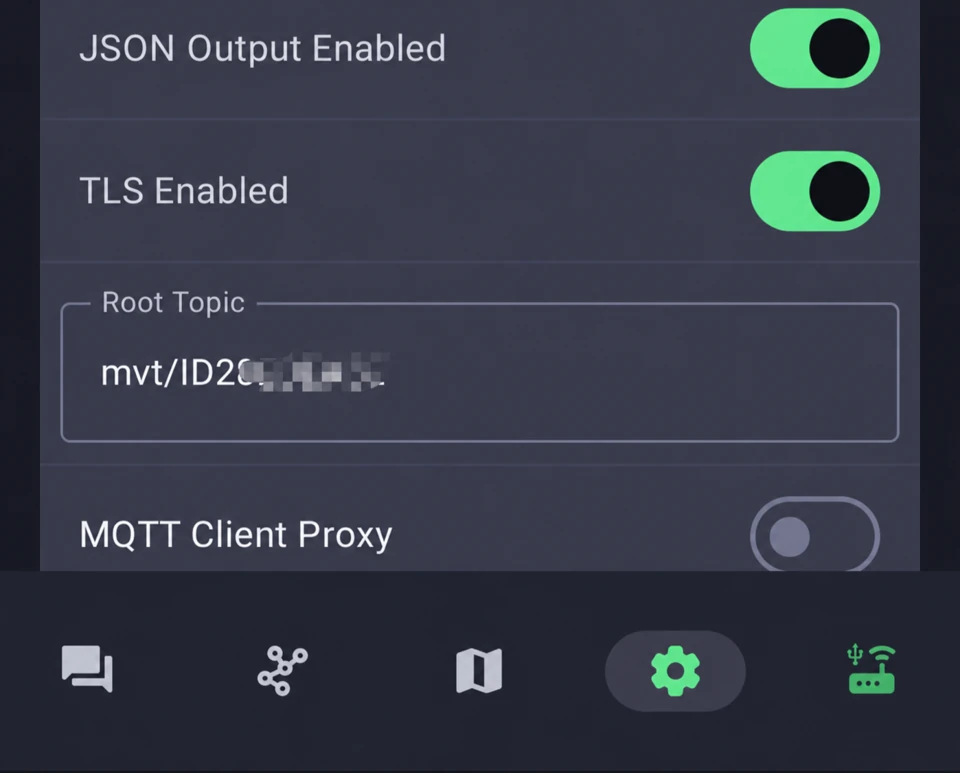
| English label | Value | Purpose |
|---|---|---|
| MQTT Enabled | On | Enables the gateway’s MQTT client. |
| Address | relay.movetain.app:8883 | The MQTT broker endpoint. This is not the Direct WSS URL. |
| Username | Your complete ROOM ID | Identifies the room. Do not use the room name or your account email. |
| Password | Your room’s RELAY KEY | Authenticates the gateway. Copy the key from your room card. |
| Encryption Enabled | On for the encrypted MQTT path | Makes the gateway publish encrypted radio packets. Enable it before the portal’s encrypted-path check. |
| JSON Output Enabled | On in the illustrated setup | Adds a decoded JSON projection. It does not replace the binary protobuf path or prove that encrypted transport is working. |
| TLS Enabled | On | Protects the gateway-to-broker connection on port 8883. This is separate from MQTT packet encryption. |
| Root Topic | mvt/YOUR_ROOM_ID | Replace YOUR_ROOM_ID with the same complete ID used as Username. Do not enter the placeholder literally or use another room’s topic. |
| MQTT Client Proxy | Off for this standalone setup | The gateway uses its own network connection rather than proxying MQTT through the phone. |
Save/apply the settings using the controls in your app version, and allow any requested gateway restart.
Press Test connection
You must press “Test connection” on the MQTT settings page after entering the broker address and credentials. Use the green Test connection button shown in the screenshot. Wait for the result; do not assume that entering an address or enabling MQTT has established a working connection.
If the test fails, recheck the address, port, TLS setting, complete Room ID, Relay Key, and the gateway’s Internet access. Save/apply the corrected configuration and test again. If your app version requires settings to be saved first, do that before repeating the test.
A successful broker connection is the first check. It does not verify LoRa uplink/downlink, the encrypted return path, the public keys of other nodes, or successful delivery of every command. Verify those separately below and check the gateway’s online status in the portal.
Enable the channel’s MQTT directions
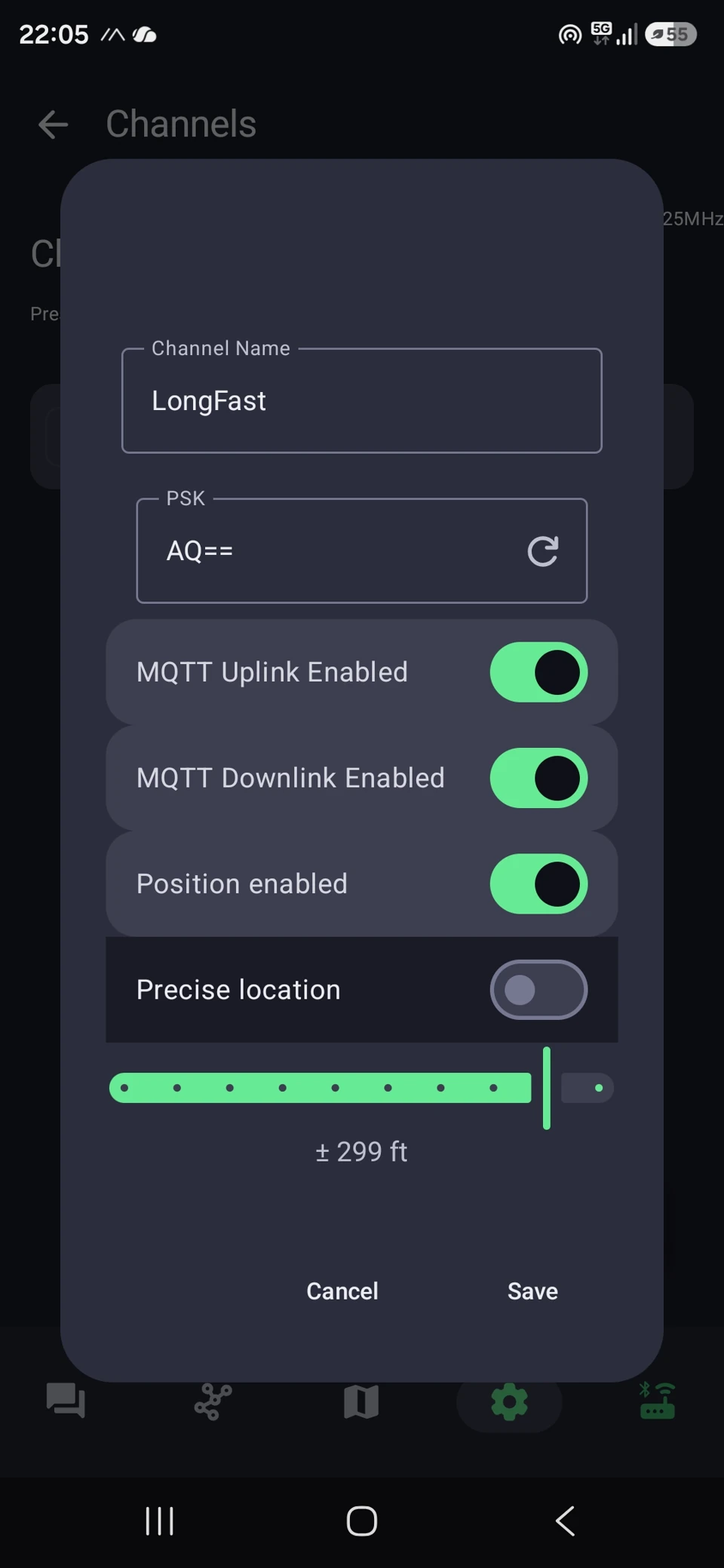
Open the gateway’s Channels settings and edit the channel used by your mesh. Check the actual channel name and key; the name shown in the example is LongFast.
| Label | Meaning / action |
|---|---|
| Channel Name | The channel’s name. Check that you are editing the intended channel; the name alone does not establish radio compatibility. |
| PSK | The shared channel key. Nodes using that channel and the portal’s channel-key configuration must use the corresponding key. |
| MQTT Uplink Enabled | Turn on to allow supported traffic on this channel to be published to the broker. |
| MQTT Downlink Enabled | Turn on to allow supported broker traffic to enter the radio mesh. Uplink alone is not enough for portal commands. |
| Position Enabled | Allows position sharing on this channel. Configure it according to the location data you intend to share. |
| Precise location | Controls position precision. It is off in the example; the slider shows approximately ±299 ft (±91 m). Do not assume that shared positions always have full GPS precision. |
| Save / Cancel | Save applies the channel changes; Cancel closes without applying them. |
Save the channel. Wait for supported radio traffic to reach the portal so it can identify the gateway and channel/downlink subscription. The same preset and frequency alone do not guarantee reception: channel/key compatibility, destination, reachability, and firmware settings also matter.
Verify MQTT / PKI transport in the portal
Open your room’s map and the gateway information/settings panel. Expand MQTT / PKI TRANSPORT. This sets up the encrypted MQTT path and the portal’s virtual-node identity for supported private messages and encrypted replies, including sensor responses.
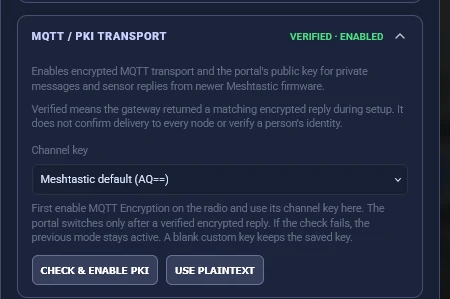
- Channel key. Select the key matching the gateway’s channel. Meshtastic default (AQ==) selects the public default key. For your own channel, choose Custom PSK / keep saved key and supply the corresponding base64 key. A blank custom-key field retains the saved key.
- CHECK & ENABLE PKI. Press this after enabling MQTT Encryption on the gateway. The portal sends an encrypted verification request and waits for a matching encrypted acknowledgement from that same gateway, for the expected request and channel.
- Wait for VERIFIED · ENABLED. Only a successful check commits the new mode. If the check fails, the previous mode stays active.
A plaintext ACK is not enough. It can confirm receipt of the request, but it does not prove that the gateway’s reply was sent back encrypted. The check must receive the matching encrypted reply.
USE PLAINTEXT returns the portal to its previous non-encrypted MQTT processing mode. It does not automatically disable TLS, radio-channel encryption, or settings on the gateway. Exchanges with nodes that require PKI may be limited.
VERIFIED · ENABLED has a specific meaning: during activation, the gateway returned the expected encrypted reply and the mode was enabled. It does not validate every node’s public key, guarantee delivery, or authenticate the human owner of a node.
Four different things to keep separate
| Layer | What it protects or enables | What it does not prove |
|---|---|---|
| TLS | The network connection between gateway and broker. | It does not replace MQTT Encryption or prove end-to-end radio encryption. |
| MQTT Encryption | Whether the gateway publishes encrypted radio packets rather than potentially decoded content. | It does not establish the public keys or identity of every destination node. |
| Channel PSK | Traffic protected with a key shared by the channel’s participants. AQ== is shorthand for Meshtastic’s standard, publicly known key. | The default key does not provide privacy from others who know it. For a closed channel, use your own random key. A matching PSK does not replace PKI key exchange. |
| Node PKI keys | Individual encrypted exchanges using a node’s public/private key pair. The public key is shared; the private key must remain on the device. | A working shared channel and ordinary ACKs do not prove that peer public keys are present, current, and usable. |
The portal participates as a virtual node with its own identity and public key. Other nodes need the appropriate public key for supported PKI exchanges; the portal likewise needs suitable information about peers. If a stored key differs from the announced key, you may see “Public key mismatch”. Verify which device owns that identity and whether its keys changed before changing trusted node information.
If a check or sensor request fails
- The broker test fails
- Fix the network, broker address, TLS, and room credentials first. A saved configuration is not evidence of a successful broker connection.
- Encryption activation receives only a plaintext ACK
- Check that Encryption Enabled is on in the gateway’s MQTT settings and that the portal uses the matching channel key. A topic containing /e/ alone does not prove the packet inside it is encrypted. JSON output is a decoded projection and is not the activation proof.
- The encrypted-path check passes, but a node does not answer
- Check node reachability, the requested feature, channel settings, and public-key information. Activation verifies the gateway path, not every destination.
- A public key is missing or mismatched
- This is separate from broker and encrypted-path verification. The current portal announces its virtual-node key, requests node information when needed, and then permits the diagnostic request. A missing peer PKI key is not an unconditional ban: some older firmware can reply using the channel key.
- Different firmware versions behave differently
- Do not assume identical PKI behavior across releases. Meshtastic 2.7.15 and 2.7.24 Alpha, for example, must not be treated as having identical response behavior. A correlated, decoded sensor result confirms more than a routing ACK alone.
- A nearby room does not show the same chat
- Meshtastic avoids publishing MQTT-origin packets back to MQTT to prevent loops. See why a nearby MQTT portal user may not see your messages.
The complete success path is: portal request → delivery to the node → compatible encryption → a decrypted reply matched to the correct request on the portal. A lock icon or a received ACK alone does not establish the whole chain.
For support, include the gateway model, gateway and target firmware versions, the failed step, and the displayed error. Keep Relay Keys and private keys out of screenshots and logs shared publicly.