Connect via Direct WSS
Create a room for your group, connect your Direct WSS gateway, and check that your radio network is online.
Create your room
Sign in to the Movetain Portal. In the ROOMS panel, select + CREATE ROOM. If your account’s room limit has been reached, check the limit shown above your rooms.
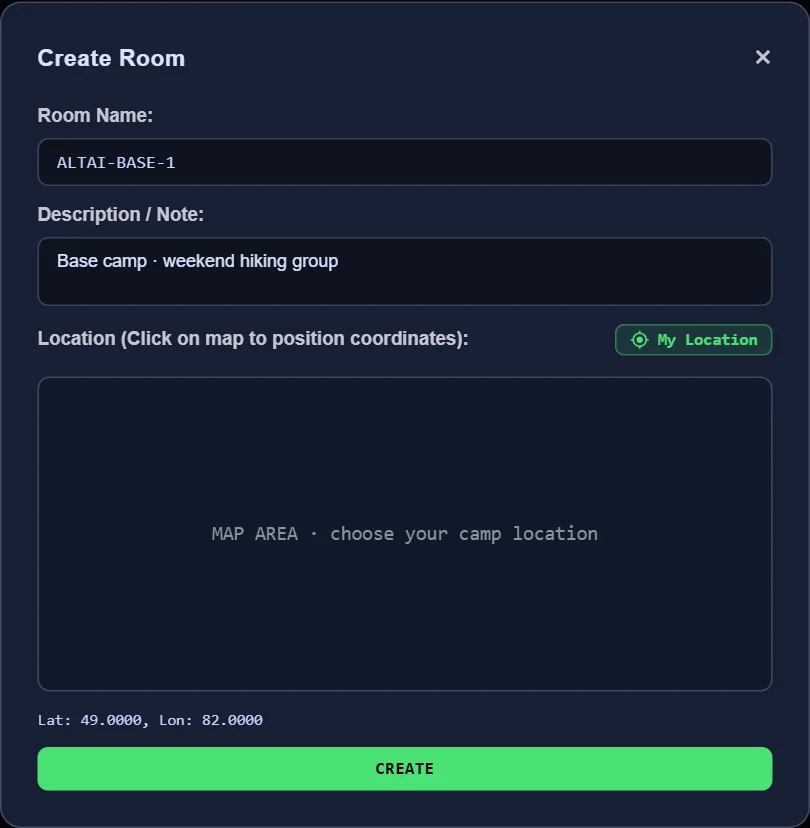
- Room Name
- A short name your group will recognize, for example ALTAI-BASE-1. The field accepts up to 28 characters; the portal converts the saved name to uppercase. This is a display name, not your Room ID.
- Description / Note
- A note about your group, route, or camp, up to 140 characters. For example: Base camp · weekend hiking group.
- Location
- Click the map to set the room’s coordinates, or use My Location and allow location access if you want to use your current position. Confirm the latitude and longitude shown below the map. This places the room on the map; it does not configure the gateway’s GPS or radio frequency.
- CREATE
- Creates the room and generates its Room ID and keys automatically. You do not enter or invent these credentials in the creation form.
Find the two values your gateway needs
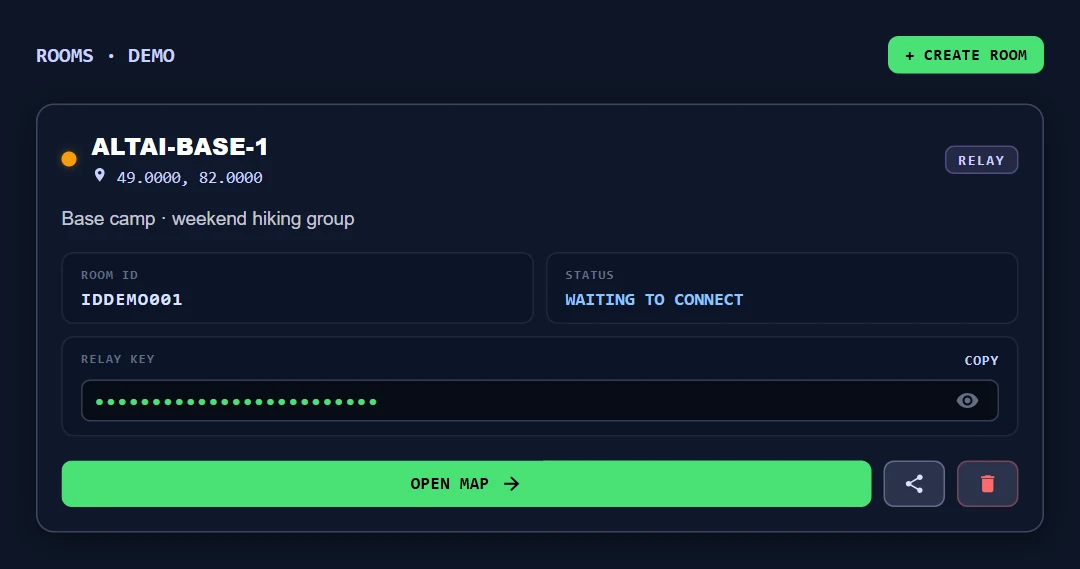
- ROOM ID → Username
- Copy the complete Room ID from your own room card. Do not use Room Name, your account email, or the example ID shown here.
- RELAY KEY → Password
- Use COPY next to RELAY KEY and paste that value into the device’s Password field. The eye icon shows or hides the key on your screen. Keep the key private; do not substitute a coordinator or spectator invitation key.
- STATUS
- The room may initially wait for a gateway connection. After setup, check this status again.
- OPEN MAP
- Opens the room map. It does not by itself connect or configure the hardware.
Connect a Direct WSS gateway
Use a board running our supported MOVETAIN Direct WSS firmware. The verified release configuration is Heltec V3 ESP32-S3; a product illustration is not a compatibility list. Standard MQTT firmware does not turn into Direct WSS firmware by entering a WSS URL.
Configure the gateway’s Wi-Fi network and password, enable Wi-Fi, and use compatible LoRa region, channel/key, and preset settings for your nodes. Connect through an available configuration method, such as USB. BLE availability can be limited while Wi-Fi is enabled.
In the Meshtastic configuration app, open the connected device’s settings and the MQTT module page shown below. In our firmware, this page’s enable, address, username, and password fields are reused by the Direct WSS module.
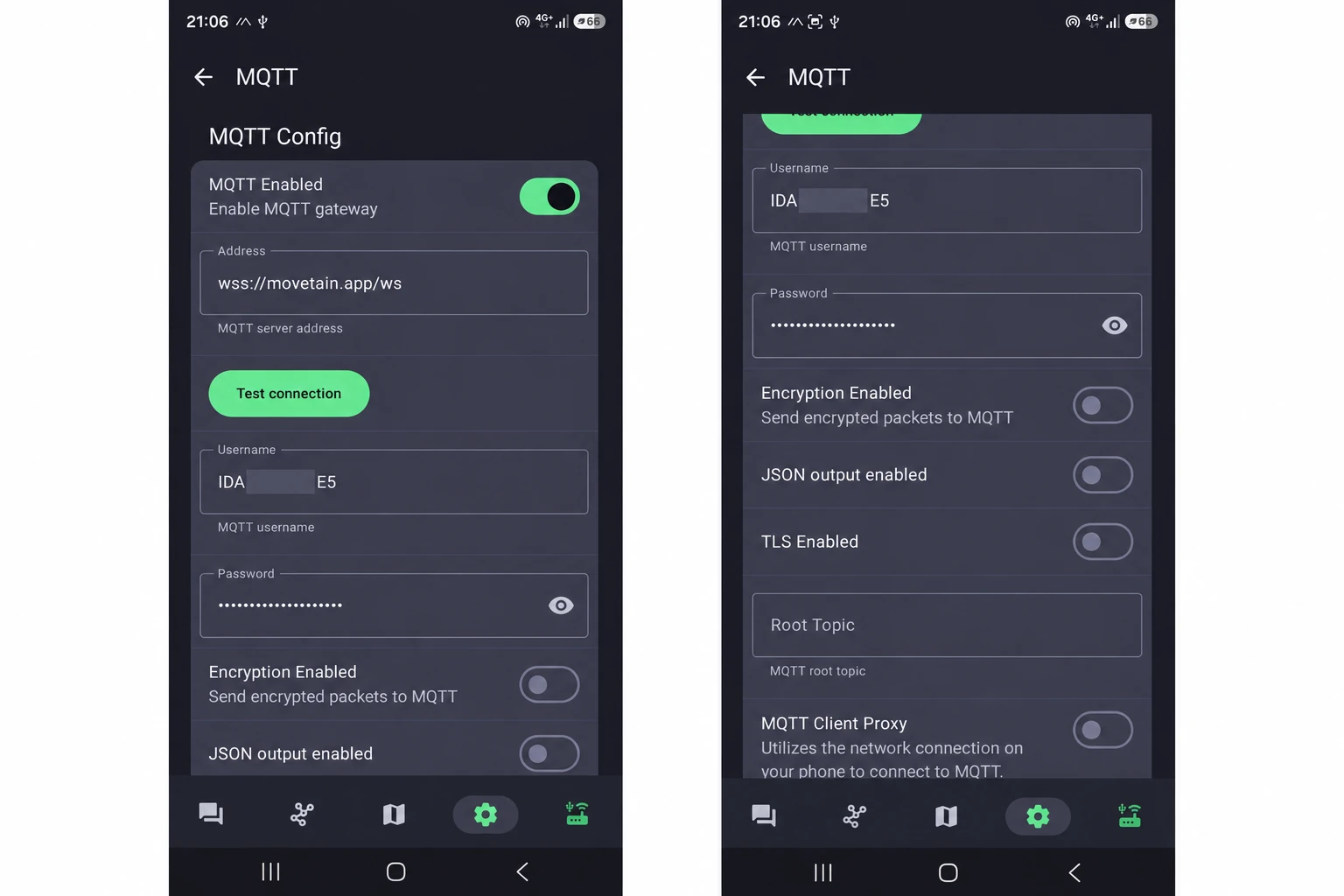
| On the screen | What to enter | What it does |
|---|---|---|
| MQTT Enabled | On | Enables our WSS gateway integration through the reused configuration flag. The MQTT client itself is excluded from this build. |
| Address | wss://movetain.app/ws | The secure MOVETAIN WebSocket endpoint. Include wss:// and /ws. |
| Username | Your room’s complete ROOM ID | Selects the room the gateway connects to. The partial ID in the screenshot is intentionally hidden. |
| Password | Your room’s RELAY KEY | Authenticates the gateway to that room. Paste the value copied from the portal. |
| Encryption Enabled | Leave off, as shown | This MQTT-client option does not control LoRa encryption in the WSS build. Keep the appropriate LoRa channel/key configuration. |
| JSON output enabled | Leave off | The WSS module prepares MOVETAIN events itself; MQTT JSON output is not used. |
| TLS Enabled | Leave off, as shown | This is an MQTT-client setting. Direct WSS uses TLS through the wss:// URL and checks the server certificate independently of this switch. |
| Root Topic | Leave blank | Direct WSS does not use MQTT topics. |
| MQTT Client Proxy | Leave off | The gateway connects using its own Wi-Fi; it does not need a phone to proxy MQTT traffic. |
Apply/save your changes in the configuration app and allow any requested device restart. The button Test connection belongs to the MQTT settings screen; do not use an MQTT test result as proof that Direct WSS has authenticated. Verify using the gateway and portal status below.
These are Direct WSS settings in a reused MQTT menu. They are not broker setup instructions for a standard MQTT gateway. For the transport comparison and firmware behavior, see Why use our firmware?
Check that the room is online
- On the gateway’s connection screen, confirm WIFI:OK, then WSS:OK. Wi-Fi alone does not confirm authentication to MOVETAIN.
- Return to your room card in the portal and check that its relay is online. Select OPEN MAP to view the room.
- If you see SET ROOM or SET KEY, complete the Username or Password mapping. For BAD KEY, copy the current Relay Key again. For NO ROOM, check the full Room ID.
- If the connection works but nodes or messages are missing, check radio reachability, region, preset, channel/key compatibility, and destination. Matching frequency alone is not enough.
For other messages, use the gateway connection-message reference. For saved routes, browse the portal’s HISTORY panel; use PLAN ROUTE to open the planner.