MVT Relay
Turn your phone and connected LoRa radio into a mobile gateway for your portal room. The phone handles the Internet connection; the radio handles the mesh.
How this connection works
The radio receives and transmits LoRa packets using its firmware and configured region, channels, keys, preset, and hop limit. It talks to the app over Bluetooth Low Energy or a supported USB connection.
The Android app reads supported radio data, maintains the node information available to it, and sends prepared events to the MOVETAIN server over a WebSocket connection. The phone uses mobile data or Wi-Fi; the radio does not need its own Internet connection for this path.
The portal displays data inside the selected room and sends supported commands back through the phone. The app passes those commands to the connected radio, which transmits them over LoRa.
| Direction | Supported information |
|---|---|
| Radio / app → portal | Available node information and positions, supported telemetry, chat messages and delivery-status updates, waypoints, and diagnostic results. On authentication, the app sends a snapshot of its current contacts. |
| Portal → radio / app | Chat messages, waypoint commands, node PING, environment and air-sensor requests, TRACEROUTE, gateway refresh, and supported hop-limit control. |
A sensor request still needs a compatible target and a radio reply. A node without a known position may have no map pin. Receiving a portal command is not proof that the destination radio received or answered it.
MVT Relay and Direct WSS are different paths. MVT Relay runs the portal integration on the phone. Direct WSS runs it inside our dedicated gateway firmware. You do not need to enter a WSS address in the radio’s MQTT menu for MVT Relay. Use firmware that provides a compatible BLE or USB client connection; our dedicated WSS build is not a prerequisite.
Connect your LoRa radio first
- Power the radio and use the correct antenna. Set the appropriate LoRa region and compatible channel/key and preset for your mesh.
- Open the MOVETAIN app’s menu and select LoRa Beacon. Use its device connection control to connect a supported radio over BLE or USB; grant the permissions requested for your chosen connection.
- Wait for synchronization to complete. Confirm that the radio is connected before starting the relay. If it says LoRa Device disconnected, reconnect the device.
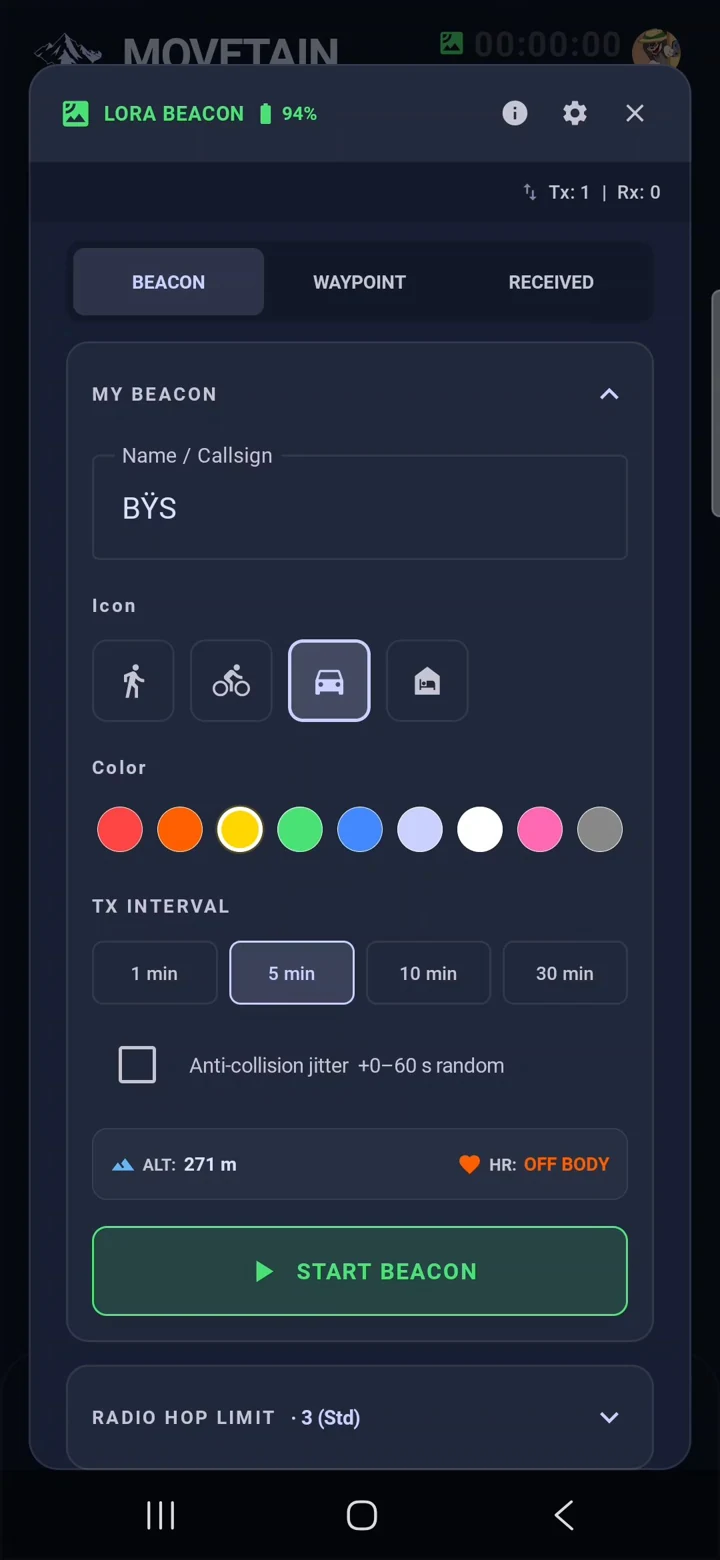
START BEACON is not the portal relay switch. Configure beacon transmission if your field workflow needs it. The bridge is started separately in the MVT Relay window.
If using the dedicated Direct WSS firmware, BLE may be unavailable while Wi-Fi is enabled. Check the actual firmware and available client transport rather than assuming Bluetooth pairing will work.
Create your room
Sign in to the Movetain Portal. In the ROOMS panel, select + CREATE ROOM. If your account’s room limit has been reached, check the limit shown above your rooms.
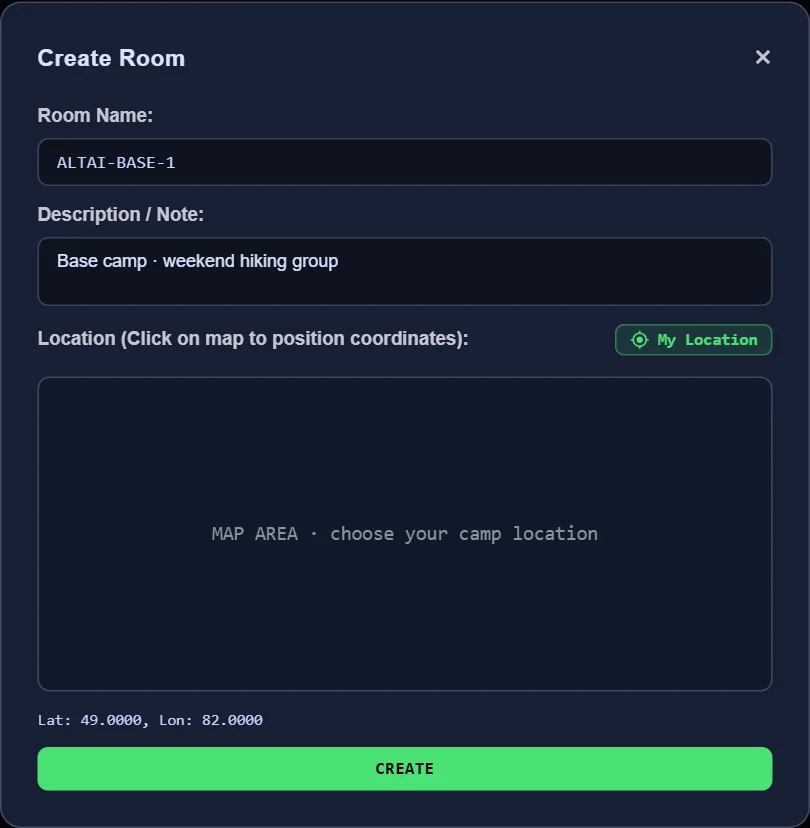
- Room Name
- A short name your group will recognize, for example ALTAI-BASE-1. The field accepts up to 28 characters; the portal converts the saved name to uppercase. This is a display name, not your Room ID.
- Description / Note
- A note about your group, route, or camp, up to 140 characters. For example: Base camp · weekend hiking group.
- Location
- Click the map to set the room’s coordinates, or use My Location and allow location access if you want to use your current position. Confirm the latitude and longitude shown below the map. This places the room on the map; it does not configure the gateway’s GPS or radio frequency.
- CREATE
- Creates the room and generates its Room ID and keys automatically. You do not enter or invent these credentials in the creation form.
Find the two values MVT Relay needs
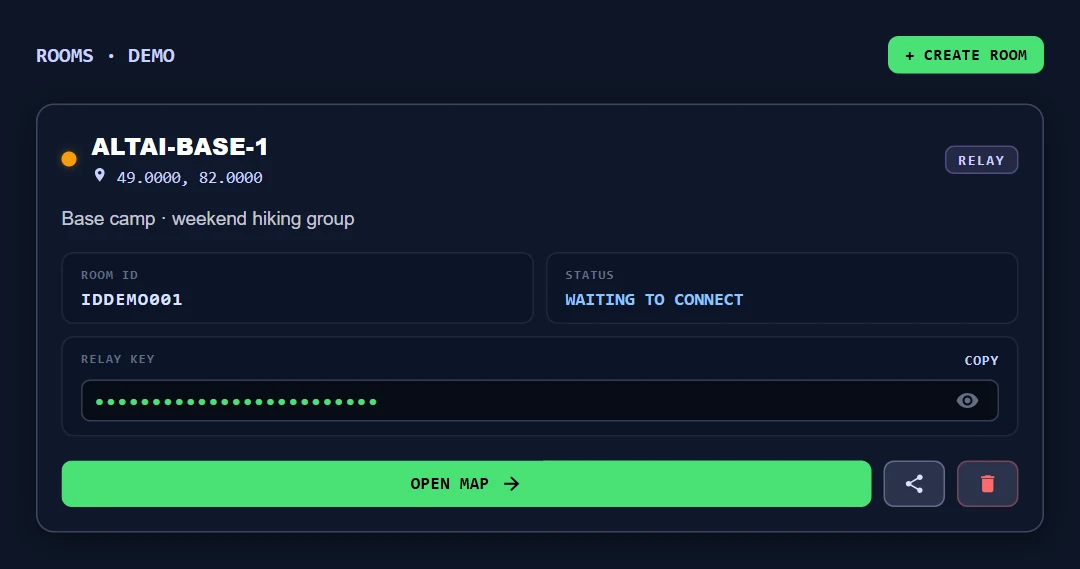
- ROOM ID → MVT Relay ROOM ID
- Copy the complete Room ID from your own room card. Do not use Room Name, your account email, or the example ID shown here.
- RELAY KEY → MVT Relay RELAY KEY
- Use COPY next to RELAY KEY and paste that value into MVT Relay’s RELAY KEY field. The eye icon shows or hides the key on your screen. Keep the key private; do not substitute a coordinator or spectator invitation key.
- STATUS
- The room may initially wait for a gateway connection. After setup, check this status again.
- OPEN MAP
- Opens the room map. It does not by itself connect or configure the hardware.
Open MVT Relay and choose your expedition
Return to the app’s main screen, open the menu, and select MVT Relay. The window heading is MOVETAIN RELAY.
- Select an expedition. Sign in with the account that owns your portal rooms. Under MY EXPEDITIONS, choose the room you want. Selecting it fills its Room ID and Relay Key automatically.
- Or enter credentials manually. Copy ROOM ID and RELAY KEY from your own portal room card. Use the ID, not the room’s display name. Use the relay key, not a spectator or coordinator invitation key.
- Check availability. A room marked BROADCASTING is already occupied and cannot be selected from the list. CURRENT RELAY identifies this device’s active room. Stop the current relay before editing its credentials or changing rooms.
Start the relay and check both links
- Make sure the phone has Internet access through mobile data or Wi-Fi, and that its BLE/USB radio connection is still working.
- Select START RELAY. The app connects to the server and authenticates to the selected room using its Relay Key.
- Wait for GATEWAY ONLINE · LIVE and the green MOVETAIN RELAY · ACTIVE heading. The main menu can also show LIVE next to MVT Relay.
- Open the same room in the portal and verify its gateway information and radio connection. An authenticated Internet connection alone does not prove the phone can communicate with its radio.
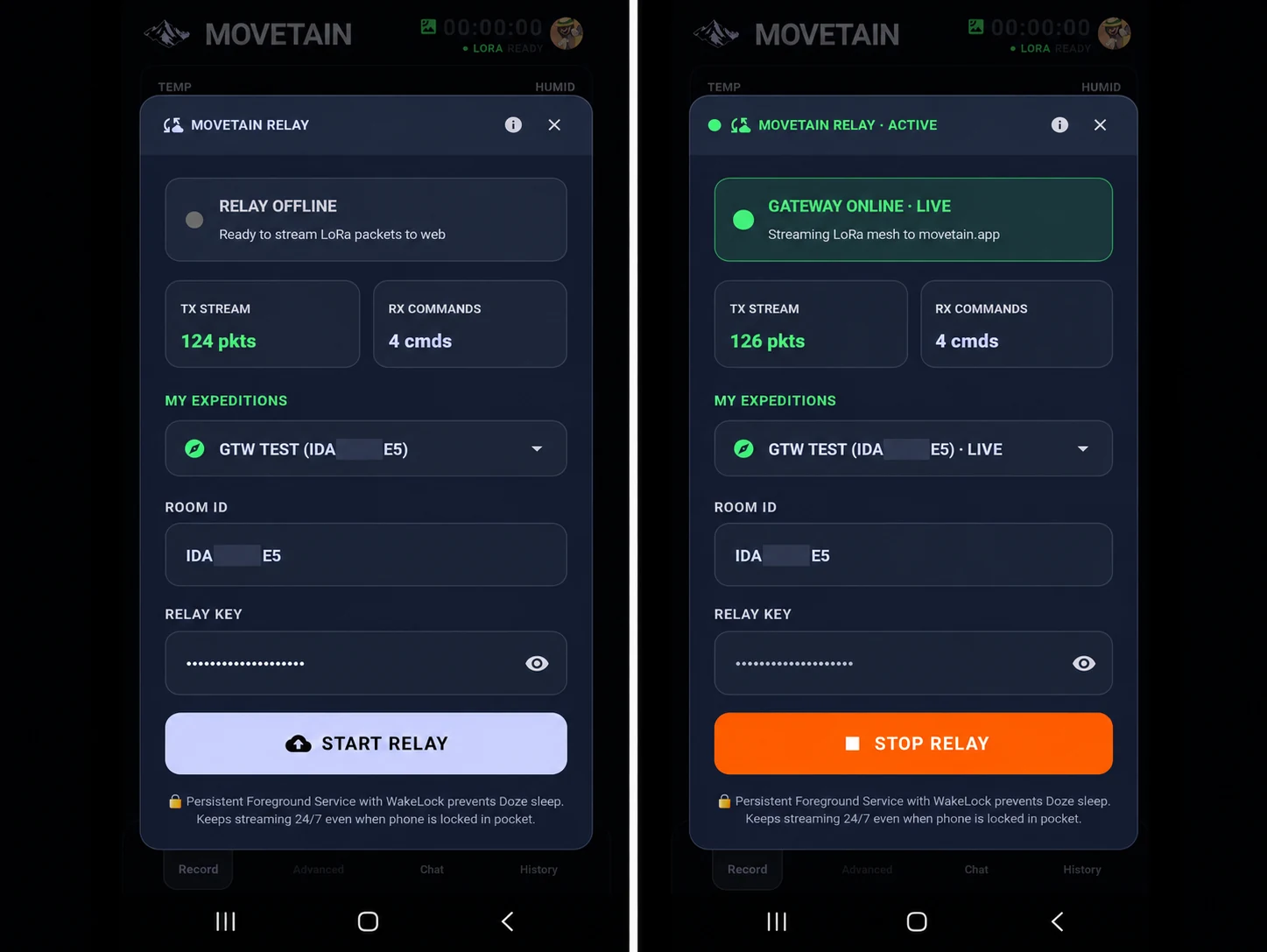
The app uses a foreground service and a wake lock so it can continue working with the screen locked. Keep its service notification enabled and allow the background operation your phone requires. Stable power, Internet, and BLE/USB are still necessary; Android or vendor battery restrictions can interrupt long sessions.
STOP RELAY ends the portal bridge and stops its automatic reconnection. It does not mean every other app function or the LoRa radio has been switched off.
Understand the status and counters
| Indicator | Meaning |
|---|---|
| RELAY OFFLINE | The cloud bridge is disconnected. Check whether you stopped it or need to start/reconnect it. |
| CONNECTING TO RELAY… | The app is connecting and authorizing as the room’s gateway. It is not yet confirmed online. |
| GATEWAY ONLINE · LIVE | The server has authenticated this relay. Check the radio connection separately. |
| CONNECTION ERROR | The connection failed. Read the detailed error below the status and check the phone’s Internet access. |
| Authorization error | The room/key was rejected or this gateway was replaced. Correct the room selection or credentials before restarting; the app does not keep retrying rejected authentication. |
| TX STREAM | Counts payloads the app successfully hands to its WebSocket for sending to the server. These include telemetry and status events, not just LoRa chat messages. This is not a recipient-delivery counter. |
| RX COMMANDS | Counts supported incoming server events/commands handled by the app. It does not count all received LoRa packets and does not prove radio command completion. |
Counters can retain earlier activity when the relay is stopped and started. Nonzero values alone do not establish that a new session is working. In the portal, this connection may be identified technically as Phone Gateway (USB) or Phone Gateway (Bluetooth); the user-facing feature in the app is MVT Relay.
If data stops arriving
- The phone loses Internet
- While the relay is running, the app attempts reconnection with increasing delays, up to about a minute. When Android reports no network, it pauses retries until the network becomes available. Do not assume every event during an outage will be replayed.
- The portal is online but the radio is disconnected
- Reconnect BLE/USB in LoRa Beacon and wait for synchronization. The phone can remain authenticated to the server while the radio is unavailable.
- The room is missing from MY EXPEDITIONS
- Check the signed-in account and whether it owns that room. If necessary, use your own complete Room ID and Relay Key manually.
- Another gateway is already using the room
- Check the BROADCASTING indication and the device currently connected to the room. Coordinate which gateway should serve it; do not repeatedly start competing devices with the same key.
- A command stays waiting or a node is absent
- Check radio reachability, destination, channels/keys, preset, and target feature support. LoRa airtime and relay hops still apply; MVT Relay does not make the radio path instantaneous.
- Firmware update controls are unavailable
- The portal’s signed device OTA mechanism targets supported Direct WSS gateways. It is not an update path for every radio connected through MVT Relay.
For support, provide the app version, radio model and firmware version, BLE/USB transport, and the displayed error. Keep Relay Keys private.
Behavior checked against Android source revision 4fcbb2f: MvtCloudModal, MovetainCloudBridge, MeshBeaconService, and MeshBeaconForegroundService; and the dedicated WSS firmware revision 6eb68fb. Screenshots show the app workflow.